Skip to content
Home Screen on a Laptop: Microsoft Copilot AI Assistant for Microsoft 365

MICROSOFT COPILOT. YOUR AI ASSISTANT FOR MICROSOFT 365. LESS ROUTINE, MORE IMPACT.

More than just a Chatbot. Microsoft Copilot works right where you work.

Your work can be so much easier. Why should you still do it yourself? Writing emails. Summarizing meetings. Creating presentations. Analyzing data. Searching for information. Microsoft Copilot can take a large part of this work off your hands. And it does so directly within Microsoft 365. Copilot brings generative AI directly into Microsoft 365. Right where your work is happening: Word, Excel, PowerPoint, Outlook, or Teams.

What is Microsoft Copilot?

Microsoft Copilot is Microsoft's AI assistant for the modern workplace, integrated directly into your Microsoft 365 apps. It is based on Large Language Models (LLMs) and accesses your work data via the Microsoft Graph. This means Copilot knows your emails, calendar entries, files, chats, and meetings and can use this information contextually. Copilot is not a chatbot in the traditional sense. It is a context-aware work assistant that understands what you are working on and can help you work faster, smarter, and with less effort. You can more efficiently summarize information, create documents, analyze data, evaluate meetings, or prepare emails without constantly switching between different tools.

In short: Microsoft Copilot transforms Microsoft 365 into an AI-powered work environment. But its true value only becomes apparent when Copilot connects with the right data, processes, and people.

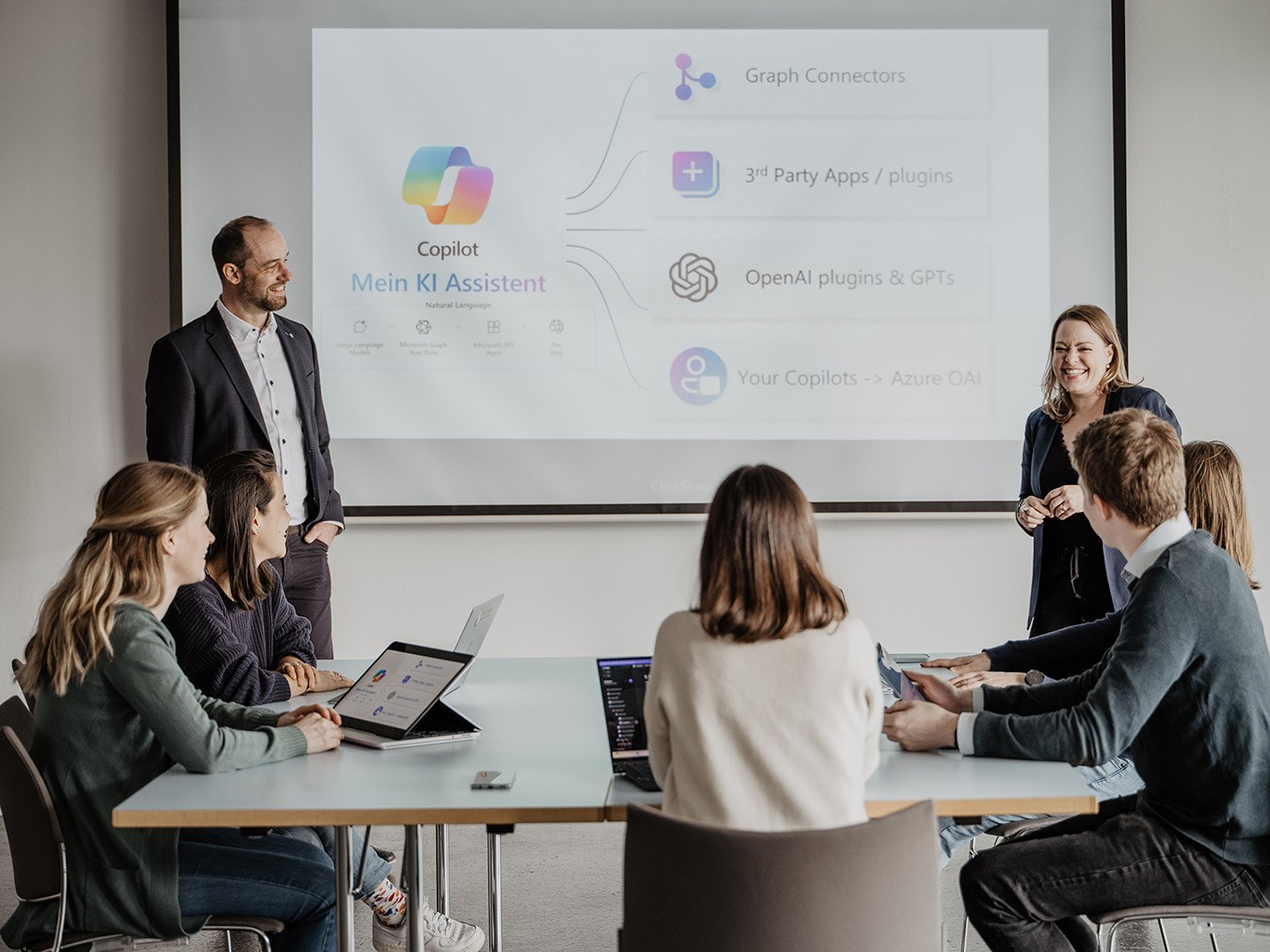
BAND Cooperative Meeting with Epic Fusion on Microsoft Copilot
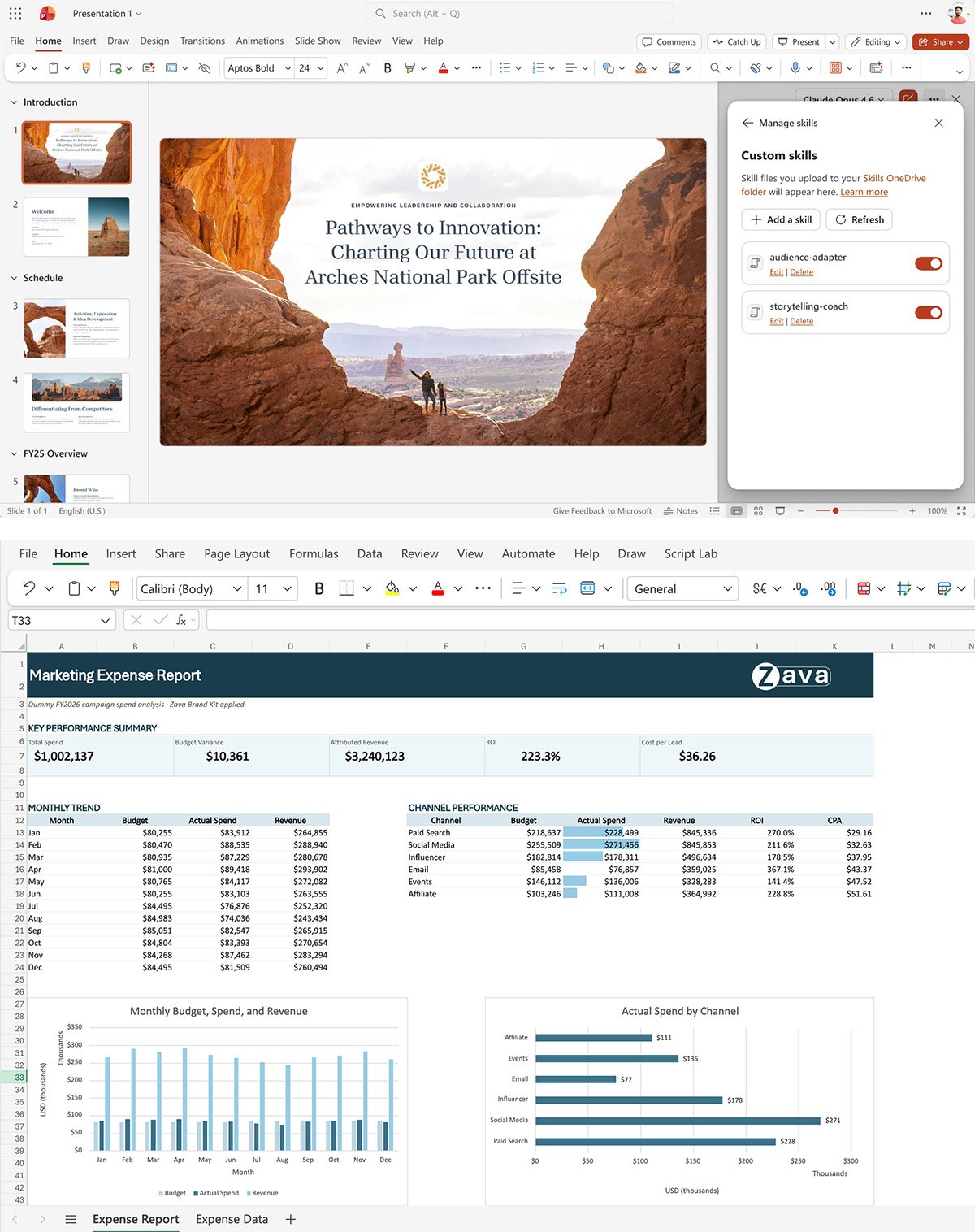
Microsoft Copilot Wave 6 PowerPoint and Excel Update

What exactly can Microsoft Copilot do?

Copilot can do more than just write texts. It helps you whenever you need to understand, process, or create something new from information. In other words, with a wide range of everyday tasks. It is always right where you are working:

  • Word: Write, edit, and summarize texts; create new documents

  • Excel: Analyze data, create formulas, identify trends, draw insights from spreadsheets

  • PowerPoint: Generate presentations from prompts, convert text into presentations

  • Outlook: Summarize emails, suggest replies, prioritize your inbox

  • Teams: Summarize meetings, highlight relevant information, structure next steps

  • Copilot Chat: Your central AI assistant for everything that cannot be assigned to a single app

The key here is not the individual feature. It is the context. The better Copilot can access relevant information and workflows, the more valuable it becomes for your daily work.

Who is Microsoft Copilot designed for?

Microsoft Copilot is particularly well-suited for companies that already use Microsoft 365 and want to integrate generative AI productively into their workflows. It is designed for all individuals and organizations that work with Microsoft 365 on a daily basis and want to reduce repetitive, time-consuming knowledge work. Copilot is especially relevant for teams that:

  • Spend a lot of time on emails, meetings, and documents

  • Regularly consolidate information from various sources

  • Process large amounts of text or data

  • Want to reduce repetitive knowledge work

  • Want to access existing company knowledge more quickly

  • Want to not only test AI but also use it in a structured way in their daily work

As a result, Copilot is well-suited for knowledge workers and teams who deal with emails, documents, and meetings on a daily basis. Managers, as well as marketing, sales, HR, and IT teams, also benefit from support with text, summaries, documentation, and decision-making. This makes Copilot appealing to both SMEs and enterprise organizations.

Copilot scales from a few to thousands of users. Therefore, Copilot is less suitable if:

  • There is no Microsoft 365 license available or desired

  • The organization primarily works with Google Workspace or other platforms

  • Fully automated, autonomous process execution is required (→ AI agents are available for this; see below)

Microsoft Copilot Use Cases.

The most powerful copilot scenarios arise in areas where employees currently spend a lot of time processing information.

The Epic Fusion Team in a meeting_Florian, Debora, Xiomi, Solomiia

Missed Meeting

App: Copilot in Teams

You were not there. But in just two minutes, you will know what was discussed and what decisions were made. Copilot helps you grasp the key points faster and identify relevant decisions and next steps.

What you save: 30–60 minutes per meeting on taking minutes, follow-up, and clarifications.

An Epic Fusion employee types a prompt on his Mac

It is time for reporting

App: Copilot in Word + Copilot Chat

You have raw data, meeting notes, and three different documents. In the past, you would have manually compiled them into a structured report. Today, you just tell Copilot what you need. It pulls the content from your sources, structures it, and delivers a draft. You make corrections, add details, and you’re done.

According to the Forrester TEI study (2024), knowledge workers save an average of 4.4 hours per week on document creation with Copilot.

Leandro on the phone during a meeting in a meeting booth at the Epic Fusion office in Bern

Countless emails

App: Copilot in Outlook

You come back to work and your inbox is full. Copilot summarizes each thread in 2–3 sentences, prioritizes them by urgency, and suggests replies. You review the content and decide what actually gets sent.

Users who regularly use Microsoft 365 Copilot spend 18% less time reading emails

 

Andreas Dennis Samuel in a meeting or workshop

Put together a presentation

App: Copilot in PowerPoint

It is 4.00 pm. The presentation for the client is tomorrow at 9.00 am. You have a Word document with the concept. You tell Copilot to create a 10-page presentation based on this document. And lo and behold: 5 minutes later, you have a structured PowerPoint template that you just need to customize visually.

What you save: 2–3 hours on structure, copy, and slide layout.

 

How can Microsoft Copilot benefit your business?

Microsoft Copilot is not just meant to bring more AI into your daily work routine. It is designed to transform the way your employees work. After all, the real business case is not that Copilot can write a text or summarize an email. What matters is what happens when thousands of small time-wasters are eliminated every day. When employees spend less time searching, documenting, copying, and doing routine tasks, something very valuable emerges: more time for work that actually creates value.

Productivity means more output with the same team. Employees spend a significant portion of their workday searching for information, communicating, documenting, and preparing content. Copilot can speed up these tasks.

But it is important to note: Copilot is not valuable simply because it uses AI. It is valuable when it gives your employees time back, makes knowledge accessible, and measurably improves their work. What matters most, therefore, is how well Copilot is used and what measurable impact it has on productivity, time savings, and collaboration.

System Requirements for Microsoft Copilot.

Microsoft Copilot cannot be installed as easily as any other app. Deployment requires consideration of factors such as licensing, identity, mailboxes, supported platforms, and network access. Microsoft also cites SharePoint governance, Purview, and a phased rollout as key readiness considerations. Key prerequisites include:

  • Microsoft 365 base license

  • Copilot add-on license

  • Microsoft Entra

  • Exchange Online

But technical deployment is only half the battle. The more important question is: Is your data ready for AI?

How do you get started with Microsoft Copilot?

A successful Copilot rollout does not start with the license. It starts with clear goals. These four steps lay the foundation for successful and sustainable implementation.

1. Define Use Cases and Objectives

Where are employees wasting time unnecessarily today? Identify specific tasks where Copilot can deliver measurable value. Define appropriate use cases and goals for each team.

2. Assess technical and organizational Readiness

Check licenses, Entra ID, Exchange Online, Microsoft 365 apps, and tenant configuration. At the same time, data, permissions, and data protection requirements should be clarified.

3. Launch the Pilot and empower Employees

Start with selected teams and clearly defined use cases. Train the pilot group on how to use Copilot and provide effective prompts. Measure usage, results, and actual time savings along the way.

4. Analyze, optimize, and scale

What works in the pilot? Which use cases create real value? Use the results to optimize the program and gradually expand Copilot to other teams and processes.

Visual Comparison of Microsoft Copilot and AI Agents

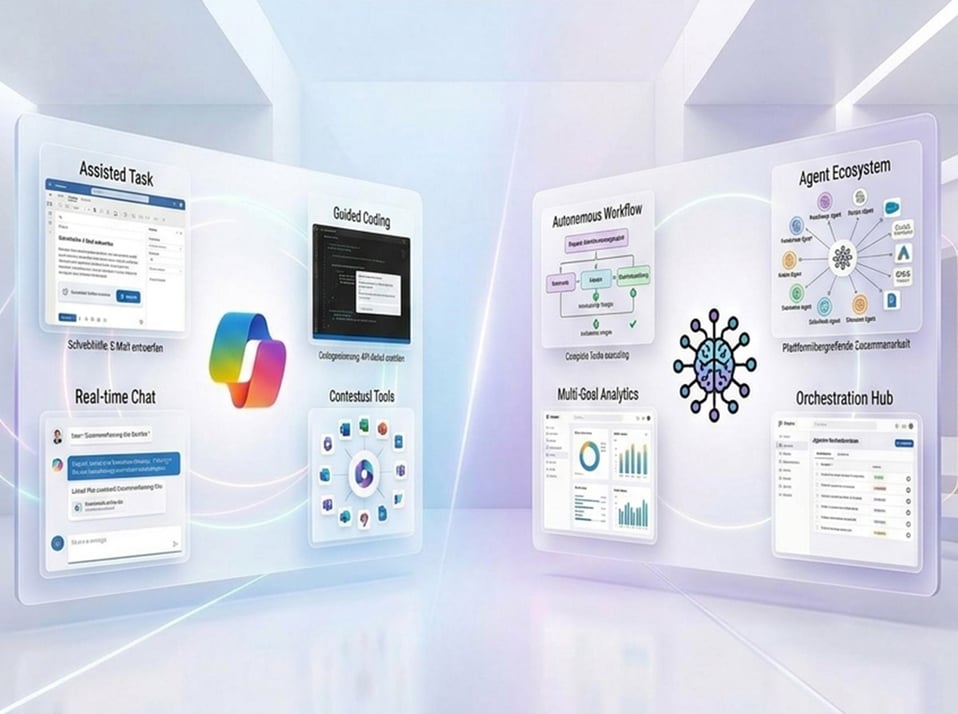
Microsoft Copilot vs. AI Agents. The Difference: Copilot provides Support. Agents take Action.

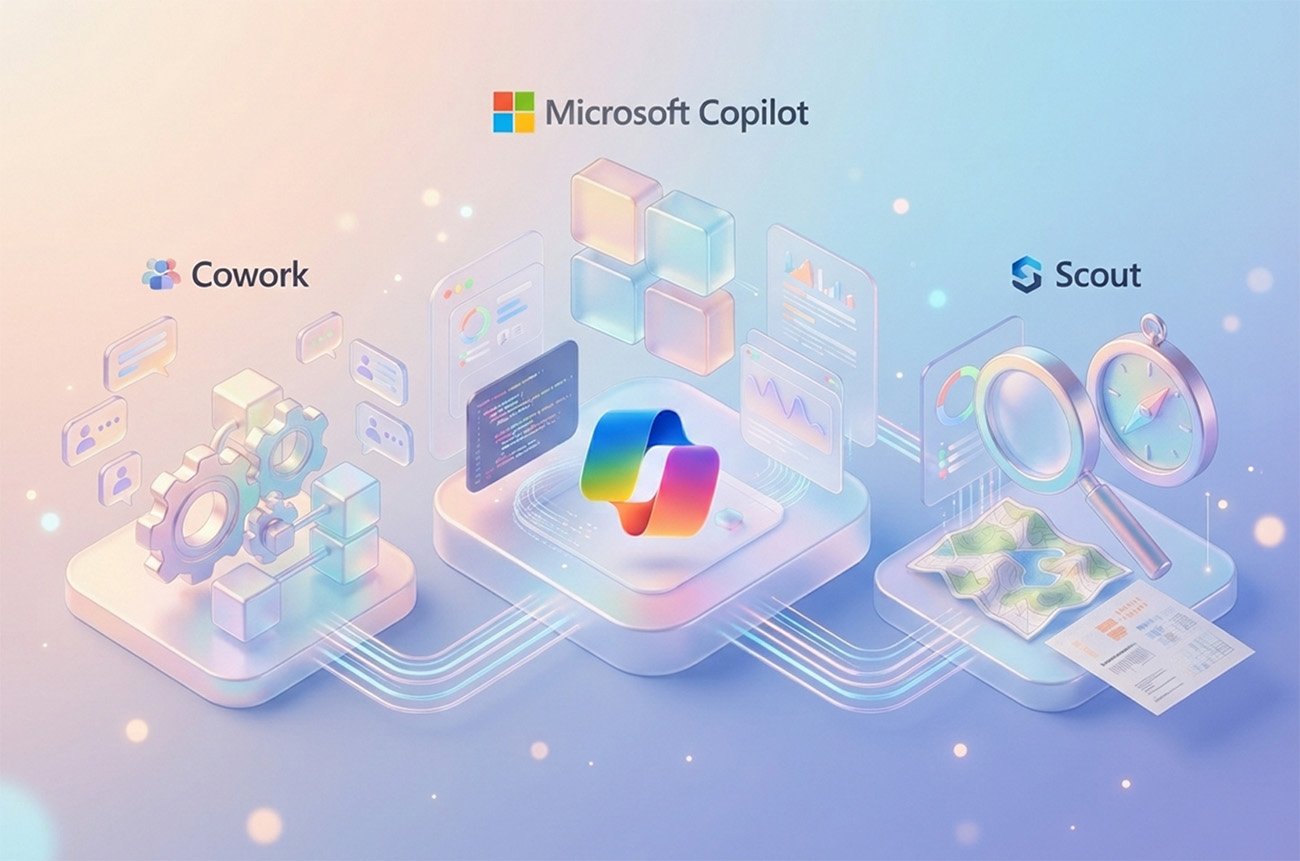
Microsoft Copilot and AI agents are not the same thing. Copilot helps you get your work done faster. You ask a question and provide context. Copilot generates, analyzes, summarizes, or makes suggestions. An AI agent goes one step further. An AI agent is developed for a specific task or process. It can leverage knowledge, prepare decisions based on defined rules, and – depending on its configuration – execute actions and workflows. At the same time, Copilot itself has integrated AI agents. With features like Cowork and Scout, Microsoft has long since moved beyond mere assistance: They can take on entire tasks, independently execute multiple steps, and act as distinct entities within your environment.

The basic principle is this: Copilot supports people in their work. AI agents take on specialized tasks and can automate processes. The two approaches are not mutually exclusive. On the contrary: Copilot and agents are increasingly becoming a combination of assistance, automation, and autonomous action. Many organizations start with Copilot and later expand to include AI agents for specific processes.

Privacy and Data Security in Microsoft Copilot.

Data protection is a key decision-making factor – especially in Switzerland and the EU. The most important points:

  • Your data is not used to train AI models.

  • Copilot respects existing access rights: A user can only see through Copilot what they’re already authorized to see.

  • EU Data Boundary: Processing can be restricted to European data centers.

  • Microsoft Purview integration: Sensitivity labels and DLP policies also apply to content generated by Copilot.

  • Audit Logs: All Copilot interactions are auditable.

However: Permissions are now more important than ever. If someone currently has access to too many SharePoint documents, Copilot will not solve this permission issue. AI readiness therefore begins with data governance.

Frequently asked Questions about Copilot.

Microsoft 365 Copilot is available in different tiers. With a compatible Microsoft 365 license, Microsoft 365 Copilot (Basic) is already available at no additional cost.

Those who wish to use the advanced features of Microsoft 365 Copilot (Premium) can purchase it as an add-on to their existing Microsoft 365 license. The list price is currently around CHF 26 per user per month with annual billing. For small and medium-sized businesses, Microsoft 365 Copilot Business offers a tailored plan with its own terms and conditions.

The exact price depends on the licensing model, your existing Microsoft 365 license, and the procurement channel. Prices are current as of the date of publication. Microsoft may change prices and licensing models at any time. Please check the currently valid prices directly with Microsoft, for example here.

Eligible base licenses are: M365 Business Basic, Business Standard, Business Premium, M365 E3, E5, F1, F3, M365 Apps for Business, and Apps for Enterprise.

Yes. Copilot processes data within the Microsoft 365 compliance limits. Your data is not used for AI training. Existing access rights remain fully intact.

Microsoft Copilot Studio allows you to configure connectors to external systems (e.g., CRM, ERP, ticketing). This marks the transition toward AI agents.

For an initial pilot group of about 15–20 participants, you should plan on about 2–3 months. During this time, technical requirements will be assessed, Copilot will be set up, the pilot group will be supported, and experiences will be systematically evaluated.

A successful rollout does not end with the issuance of licenses. It is crucial that employees know how to use Copilot effectively and understand its limitations. Based on the pilot phase, you can then decide how and to what extent Copilot will be rolled out across the company. The actual duration depends on the initial situation, the organization, the technical requirements, and the desired scope.

In short: Copilot assists you, and you stay in the driver's seat. An AI agent acts autonomously. You define the goal here, and it takes care of the rest. Many organizations start with Copilot and later expand to include AI agents for specific processes.

For more information, check out our blog.

These terms are often confused.

Microsoft 365 Copilot (Basic) is already included in certain Microsoft 365 licenses and provides an introduction to Copilot Chat. The focus is on web information and select Copilot features within Microsoft 365. A selection of basic agents is also available. Copilot does not have the same level of access to personal work data such as emails, chats, documents, or appointments.

Microsoft 365 Copilot ( Premium) expands Copilot to include access to authorized work-related information and additional features in apps such as Word, Excel, PowerPoint, and Outlook. It also includes more powerful agents like Researcher and Analyst, as well as priority access.

In short: Basic is the entry-level option. Premium turns Copilot into a significantly more integrated work assistant.

Stay up to date.

Copilot Pulse Wave 7: You decide how much Copilot does
Copilot Wave 7

You decide how much Copilot does.
Copilot Pulse Wave 6: Autopilot in Everyday Work
Copilot Wave 6
The Autopilot in your daily work.
Microsoft Copilot Blog Update: Copilot Wave 5
Copilot Wave 5
From copilot to autopilot.

A Copilot license does not automatically create an intelligent Workplace.

You can continue to have your employees search, copy, and summarize information. Or you can let AI take over. We’ll show you how to get real value out of Microsoft Copilot.
 

Success Stories: Our client projects that inspire.

placeholder_200x200

BAND

BAND will be AI-ready in just one year. Epic Fusion is implementing a comprehensive Microsoft 365 cloud architecture, including the Modern Workplace client, a full Teams migration, and zero-trust security. Supported by coaching, webinars, and targeted user adoption initiatives, the company is successfully making a swift transition to the new world of work. Thanks to this comprehensive transformation, BAND is now able to use Microsoft Copilot productively.
placeholder_200x200

Steag & Partner AG

From siloed solutions to an integrated cloud: Epic Fusion has implemented a secure, fully cloud-based modern workplace for Steag & Partner AG, featuring a consolidated infrastructure, migration to Microsoft Teams, centralized device management (Managed Workplace), and a holistic cloud security architecture. The result: a location-independent, flexible, and highly secure workplace for the edoniq team.
placeholder_200x200

BORNER

Epic Fusion implemented a modern, unified communication environment based on Microsoft Teams at BORNER. By replacing isolated email systems, outdated phone systems, and server-based file storage, a central collaboration hub has been created, complemented by a robust user adoption strategy. BORNER now benefits from more efficient processes, enhanced data security, and a future-proof communication culture.
brandmark
MODERN, SECURE AND INCLUSIVE BUSINESS INFORMATION TECHNOLOGY.

Microsoft
2024 Partner of the Year
Winner
Modern Workplace for
Frontline Workers Award

Learn More
Logo Swiss Digital Services